
AskHandle Blog
How to Build an AI Agent That Remembers What It Found: Follow-Up Questions with Data Search
- data-search
- dispatcher
- tutorial
- AI
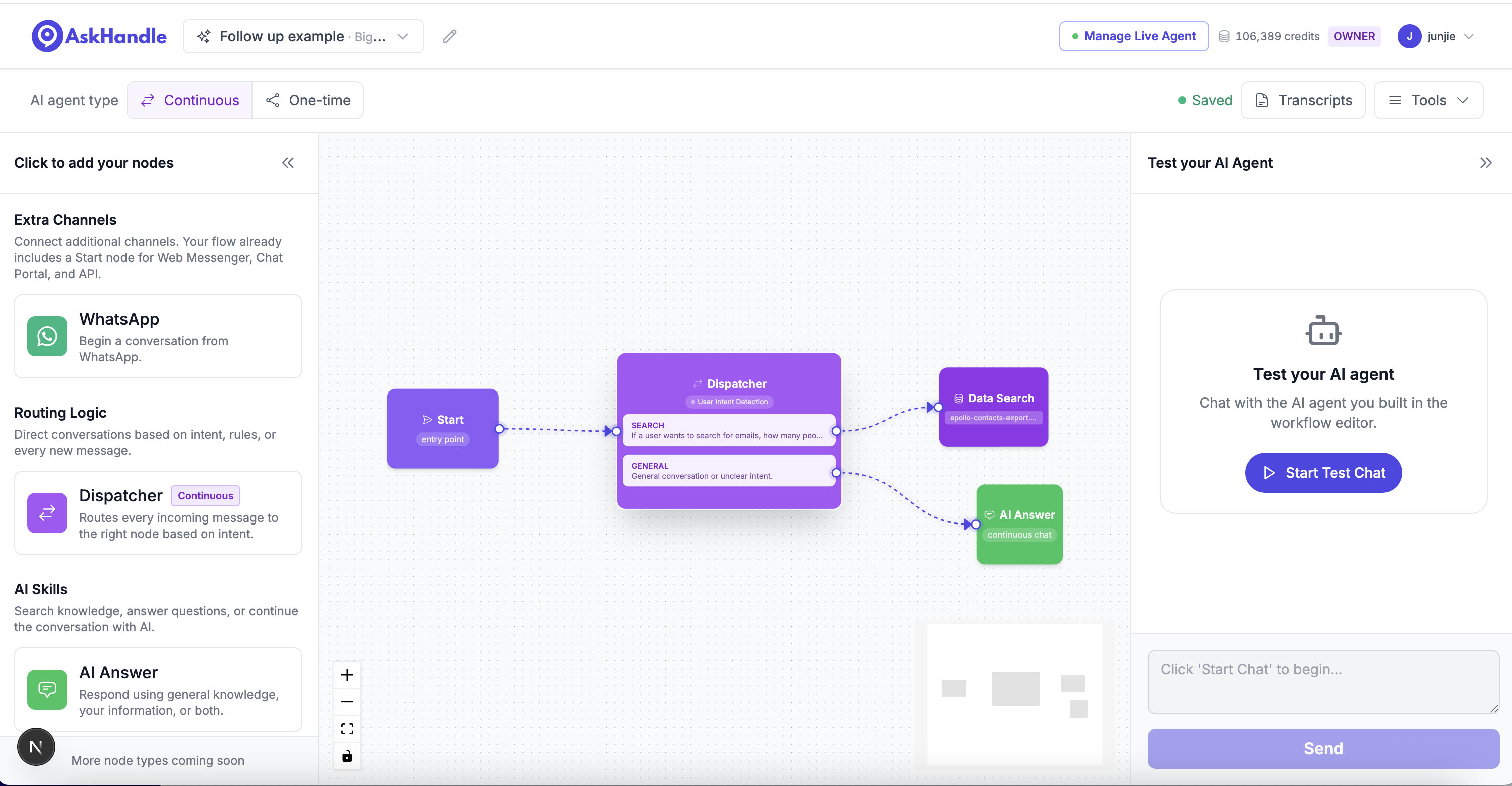
How to Build an AI Agent That Remembers What It Found: Follow-Up Questions with Data Search
If you've built a AI Agent with the Data Search node, you already know it's great at answering precise, single-shot questions grounded in your CSV or Excel data — "How many managers do we have?", "What department is Sarah in?", "What's the price of SKU-4021?" But real conversations rarely stop at one question. Users ask a follow-up. And a follow-up. And another.
Until now, handling that meant either re-running Data Search for every single message (slow, and it re-triggers the "Show Found Data" attachment every time), or losing the context entirely and having your AI node reply "I don't have access to that information."
We just shipped a fix for that: Data Search now always keeps the data it found as hidden context in the conversation — even when you don't want to show it to the user. That means any node downstream, like an "AI Answer" node, can answer follow-up questions using that same data, without hitting your file again.
This post walks through the new Dispatcher → Data Search → AI Answer pattern, and shows a real example end-to-end.
The problem this solves
Picture a simple support agent built on a contacts CSV. A user asks:
How many C-suite people do we have?
Data Search runs the count, replies "We have 7 c-suite people," and the turn ends. Now the user asks:
Which one of them works at the Des Moines office?
Without shared context, your agent has no idea what "them" refers to. It either re-runs a full search (which may not even be phrased as a searchable query) or it just guesses — which is exactly the kind of hallucination Data Search is built to avoid.
The fix: hidden context, visible answers
Every time Data Search finds matching rows, it now attaches that data to its response as machine-readable context — regardless of whether your "Show Found Data to Users" toggle is on or off.
- Toggle ON — the found rows are also shown to the end user as a collapsible "Found Data" attachment, like before.
- Toggle OFF — the rows are invisible to the user, but still travel with the conversation history.
Either way, the data is there for the next node to use. This means you can now design a flow where:
- A Dispatcher node figures out the user's intent.
- If it's a data lookup, it routes to Data Search, which finds the facts and quietly attaches them to the conversation.
- If it's a follow-up or conversational question, the Dispatcher routes to an AI Answer node instead — which reads the same hidden data from the recent conversation history and answers directly, no second database hit required.
Building the flow
Here's the shape of it:
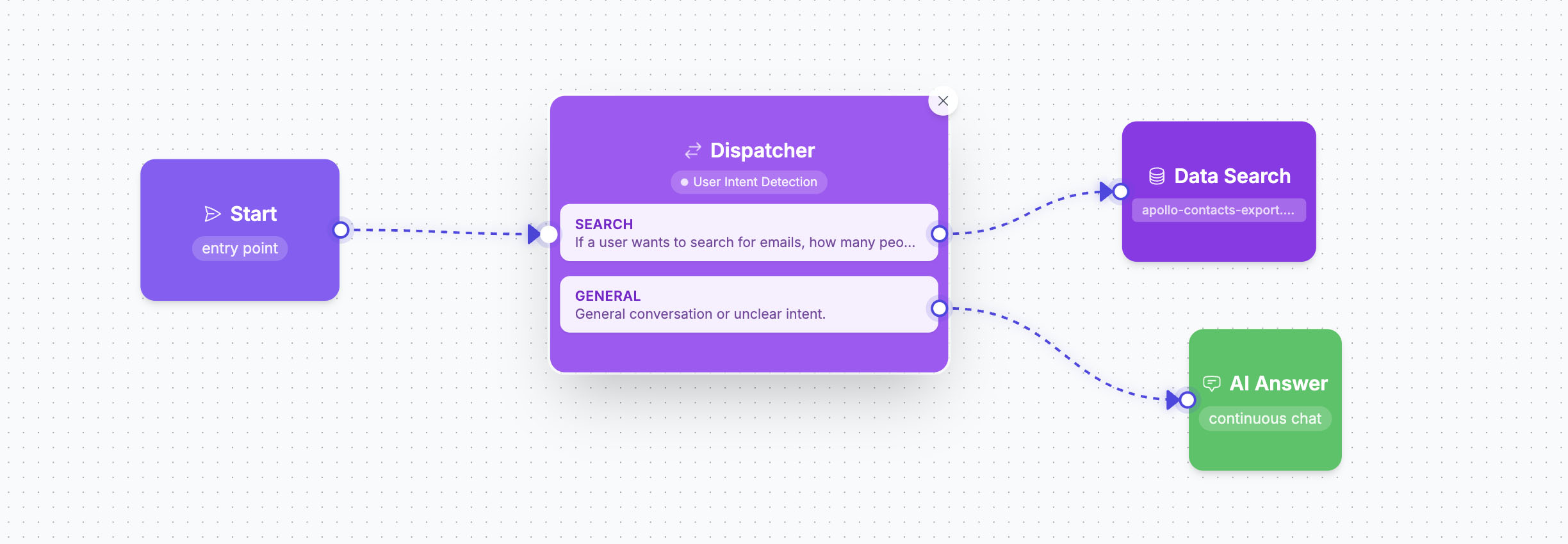
1Start → Dispatcher →  ┬→ [Search]   → Data Search
2                      └→ [Fallback] → AI Answer
Step 1 — Start node. Nothing new here — this is your entry point.
Step 2 — Dispatcher node. Define two routes (at minimum). Here's a real example config:
| Name | Description | |
|---|---|---|
| Intent 1 | Search | The user wants a new, fresh contact lookup with specific criteria — a name, department, count, or filter (e.g. "how many managers do we have," "what's Sarah's email," "who is in Marketing"). Do not use this for follow-up questions that reference people or data already mentioned earlier in the conversation. |
| Fallback | Fallback | General conversation, greetings, or a follow-up/clarifying question about someone or something already discussed earlier in this conversation (e.g. "which one," "what about her," "tell me more about them," "what's their email" referring to previously found people). |
⚠️ Important wording detail: The Dispatcher classifies intent using only the current message — it does not see the conversation history. So a follow-up like "what's her email?" can easily get misclassified as
Searchif your intent description just lists topics ("emails," "department counts") without explicitly distinguishing new lookups from follow-ups referencing something already found. Being explicit about that distinction in both descriptions, like above, is what makes the routing reliable.
Step 3 — Data Search node. Connect it to the Search route. Configure it as usual: select your file, write a casual Response Style (e.g. "Friendly and conversational, like a knowledgeable teammate"), and decide on "Show Found Data to Users." We recommend leaving it off for a clean chat experience — the data is still available to the next node either way.
Step 4 — AI Answer node. Connect it to the Fallback route. No special configuration needed — because the conversation history already contains the hidden data from the last Data Search turn, this node can just... answer. Give it a system prompt like "Answer based on the conversation so far. If the answer isn't in the conversation, say you don't have that information yet."
That's it. Both nodes loop back so the conversation can keep going.
A real example
We tested this exact pattern using a contacts export with columns for Seniority and Departments. Here's what a real conversation through this flow looks like:
Turn 1 — data question, routed via Search:
User: How many C-suite people do we have?
AI: We have 7 c-suite people (filtered by: Seniority = C-Suite).
Behind the scenes, Data Search found all 7 matching rows — including this one from the source data:
| First Name | Last Name | Title | Company | Seniority | Departments | |
|---|---|---|---|---|---|---|
| Jim | Daner | Chief Marketing Officer | Department of Greater Des Moines | jim.daner@mycompany.com | C suite | C-Suite, Marketing |
That row (and the other 6) is attached to the conversation as hidden context — the user never sees a raw table, just the clean one-line answer.
Turn 2 — follow-up, routed via Fallback:
User: Which one of them works at the Des Moines office?
AI: Jim Daner, Chief Marketing Officer at Department of Greater Des Moines (jim.daner@mycompany.com), is the C-suite contact there.
No second database search happened. The Dispatcher recognized this as a conversational follow-up ("them" referring back to the prior answer) and routed it to Fallback → the AI Answer node, which read the 7 rows already sitting in the conversation history and picked out the right one.
Turn 3 — a new data question, back to Search:
User: And how many managers do we have?
AI: We have 21 managers.
The Dispatcher routes this back to Search, since it's a fresh, independent lookup — not a reference to the previous answer.
Why this matters
- Faster follow-ups. Skipping a redundant database search means a snappier response for the questions users ask most — the ones that build on what they just learned.
- Cleaner UX. You're not forced to choose between "always show the raw data table" and "the AI can never reference what it found." You get both: hidden by default, still usable.
- More natural conversations. Users don't talk in isolated, fully-specified questions — they say "which one," "what about her," "and the other one?" Now your agent can keep up.
Getting started
If you already have a Data Search node in a workflow, no migration is needed — this behavior is on by default. To take advantage of it:
- Add a Dispatcher (if you don't have one) with a
Searchintent and aFallbackintent, worded as shown above. - Connect
Search→ Data Search, andFallback→ an AI Answer node. - Test it in the chat panel with a two-turn conversation, like the example above — try a fresh lookup, then a pronoun-based follow-up ("what's her email?"), and confirm each one hits the intent you expect.
Look for the tip inside the Data Search node's "How Data Search works" panel — it links directly to this pattern so your team can rediscover it later.